Introduction
WordPress powers over 40% of websites globally, making it one of the most popular content management systems (CMS) in the world. Whether you are a small business owner, blogger, or developer, knowing how to login to WordPress site admin is the first step toward managing your website effectively.
The WordPress admin dashboard is the control center of your website. It allows you to publish posts, manage pages, install plugins, customize themes, handle user accounts, and optimize your site for search engines. This article provides a detailed guide on logging into WordPress, troubleshooting login issues, securing your admin account, and tips for efficient website management.
What is the WordPress Admin Dashboard?
The WordPress admin dashboard, often referred to as the WordPress backend, is where website owners and administrators manage their websites. Once you login to WordPress site admin, you gain access to a variety of tools and features, including:
- Content Management: Create, edit, and organize posts and pages.
- Appearance Settings: Customize themes, widgets, and menus.
- Plugin Management: Install, activate, and configure plugins.
- User Management: Add, remove, or modify user roles and permissions.
- SEO and Analytics: Use plugins to optimize content and track performance.
- Security Settings: Manage website security measures, backups, and updates.
Understanding the admin dashboard is crucial for efficiently managing your WordPress site.
How to Login to WordPress Site Admin
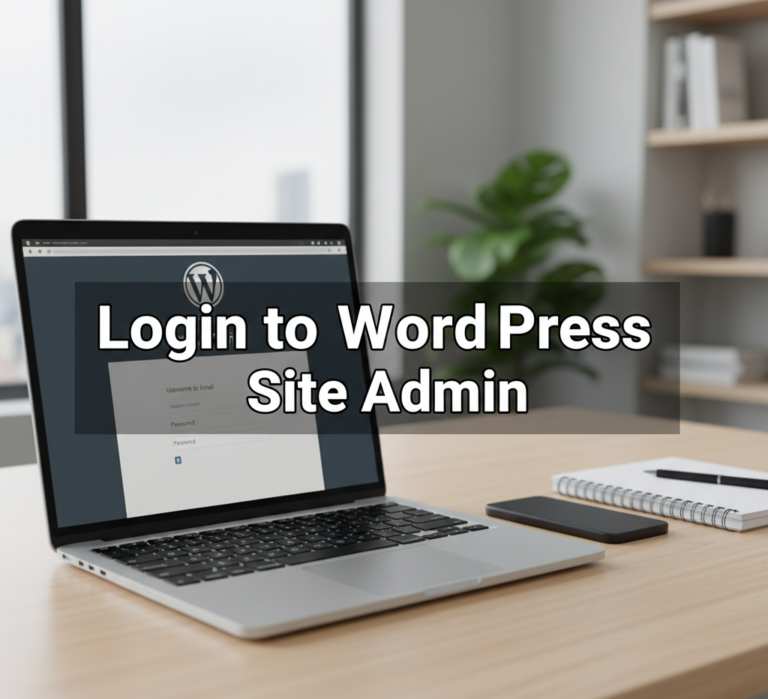
Logging into your WordPress admin panel is simple but requires the correct URL, username, and password. Here’s a step-by-step guide:
Step 1: Access the Admin Login URL
The default WordPress admin login URL is usually:
https://yourwebsite.com/wp-admin
or
https://yourwebsite.com/wp-login.php
Replace “yourwebsite.com” with your actual domain name. Enter the URL into your browser’s address bar.
Step 2: Enter Your Credentials
Once the login page appears, enter your username or email address and password. If you forgot your credentials, you can click the “Lost your password?” link to reset it.
Step 3: Click the Login Button
After entering your credentials, click the Login button. If your username and password are correct, you will be redirected to the WordPress admin dashboard.
Common WordPress Login Issues and Fixes
Even experienced users sometimes face login problems. Here are common issues and solutions:
1. Incorrect Username or Password
If you receive an error message, double-check your credentials. Use the password reset option if needed.
2. Lost Admin Email
If you cannot access your email, reset the password using phpMyAdmin or contact your hosting provider.
3. Forgotten URL
If your WordPress login URL has been changed for security purposes, check your hosting control panel or WordPress configuration files to locate the correct URL.
4. Plugin or Theme Conflicts
Sometimes login issues occur due to plugin or theme conflicts. Access your website via FTP and temporarily rename the plugins folder to troubleshoot.
5. Browser Issues
Clear your browser cache and cookies or try logging in from a different browser.
6. Security Lockouts
If your admin account is locked due to failed login attempts, check security plugins or contact your hosting provider for assistance.
Securing Your WordPress Admin Login
Security is critical since hackers often target WordPress admin accounts. Here are ways to secure your login:
1. Strong Passwords
Use complex passwords combining letters, numbers, and symbols. Avoid common words and phrases.
2. Two-Factor Authentication (2FA)
Enable 2FA to add an extra layer of security. Users must verify identity using a mobile device or authentication app.
3. Limit Login Attempts
Use plugins to restrict the number of failed login attempts, preventing brute force attacks.
4. Change the Default Login URL
By default, WordPress uses /wp-admin or /wp-login.php. Changing the login URL makes it harder for attackers to find your login page.
5. SSL Certificates
Use HTTPS to encrypt data transmitted between your browser and the server, ensuring login credentials are secure.
6. User Roles and Permissions
Assign proper roles to users and avoid giving admin privileges to unnecessary accounts.
Tips for Efficient Use of WordPress Admin
Once logged in, the following tips can help you manage your website effectively:
1. Customize the Dashboard
Remove unnecessary widgets and arrange the dashboard for quick access to frequently used features.
2. Update Regularly
Keep WordPress, themes, and plugins updated to prevent security vulnerabilities.
3. Use SEO Plugins
Install SEO plugins like Yoast SEO or Rank Math to optimize your content directly from the admin panel.
4. Backup Your Website
Use plugins or hosting tools to back up your website regularly. In case of issues, backups allow you to restore your site quickly.
5. Monitor Website Analytics
Integrate Google Analytics or similar tools to track traffic and performance, helping make informed decisions.
6. Use Media Efficiently
Manage images, videos, and documents through the media library. Optimize file sizes for faster load times.
Advanced Tips for WordPress Admin Users
For more advanced users, the WordPress admin dashboard offers additional features:
1. Custom Post Types
Create custom post types for portfolios, testimonials, or products for better content organization.
2. User Management
Assign specific roles like Editor, Author, Contributor, or Subscriber based on responsibilities to streamline workflow.
3. Plugin Management
Only install essential plugins to avoid slowing down your website. Regularly audit plugins and remove unused ones.
4. Theme Customization
Use the theme customizer to adjust colors, fonts, layouts, and widgets without touching code.
5. Database Access
Advanced users can access the WordPress database via phpMyAdmin to manage users, posts, and settings directly.
6. Multisite Management
If running multiple sites, WordPress multisite allows you to manage all websites from a single admin dashboard.
Troubleshooting Tips for Admin Dashboard Issues
Sometimes, even after logging in, users face problems in the admin dashboard:
- White Screen of Death: Disable plugins or switch to a default theme.
- Slow Dashboard: Optimize your database, disable unnecessary plugins, and use caching plugins.
- Missing Menus: Check user roles and capabilities to ensure access is allowed.
- Error Messages: Review debug logs or contact your hosting provider for support.
Regular maintenance ensures smooth access and functionality in the WordPress admin panel.
Mobile Access to WordPress Admin
WordPress offers a mobile app for iOS and Android devices, allowing you to login to WordPress site admin from anywhere. Features include:
- Publishing and editing posts and pages
- Moderating comments
- Managing media library
- Receiving push notifications for new comments or updates
Mobile access provides convenience for busy website owners who need to manage their sites on the go.
Conclusion
Knowing how to login to WordPress site admin is the first step toward effectively managing your website. From content creation and user management to security and analytics, the admin dashboard provides all the tools you need to run a successful online presence.
By following best practices for login, security, and dashboard management, website owners can ensure smooth operations, protect their site from unauthorized access, and optimize performance. Whether you are a beginner or an experienced user, mastering the WordPress admin panel is essential for website success.